Read our blogs, tips and tutorials
Try our exercises or test your skills
Watch our tutorial videos
Catch up on one of our webinars
Take a self-paced course
Read our recent newsletters
License our courseware
Book expert consultancy
Buy our publications
Get help in using our site
386 attributed reviews in the last 3 years
Refreshingly small course sizes
Outstandingly good courseware
Whizzy online classrooms
Wise Owl trainers only (no freelancers)
Almost no cancellations
We have genuine integrity
We invoice after training
Review 30+ years of Wise Owl
View our top 100 clients
Search our website
We also send out useful tips in a monthly email newsletter ...

Some other pages relevant to this blog include:
You can also book hourly online consultancy for your time zone with one of our 7 expert trainers!
| Some examples of using Copilot 365 Business within Office 365 |
|---|
| If you have paid for a Copilot 365 Business licence you will be able to summarise emails, work with OneDrive and Excel, analyse SharePoint lists and post to your Teams calendar (and much, much more). |
In this blog
This blog shows a few examples of how you can use Copilot 365 Business to work with OneDrive, Excel, Outlook, Teams and SharePoint.
At the time of writing a 365 Business licence is not sufficient for using Copilot within all of the Microsoft 365 cloud applications - you'll also need a separate Copilot 365 Business licence for some of the examples below, which you will need to pay for annually, not monthly. I've attempted to demystify Copilot licensing here.
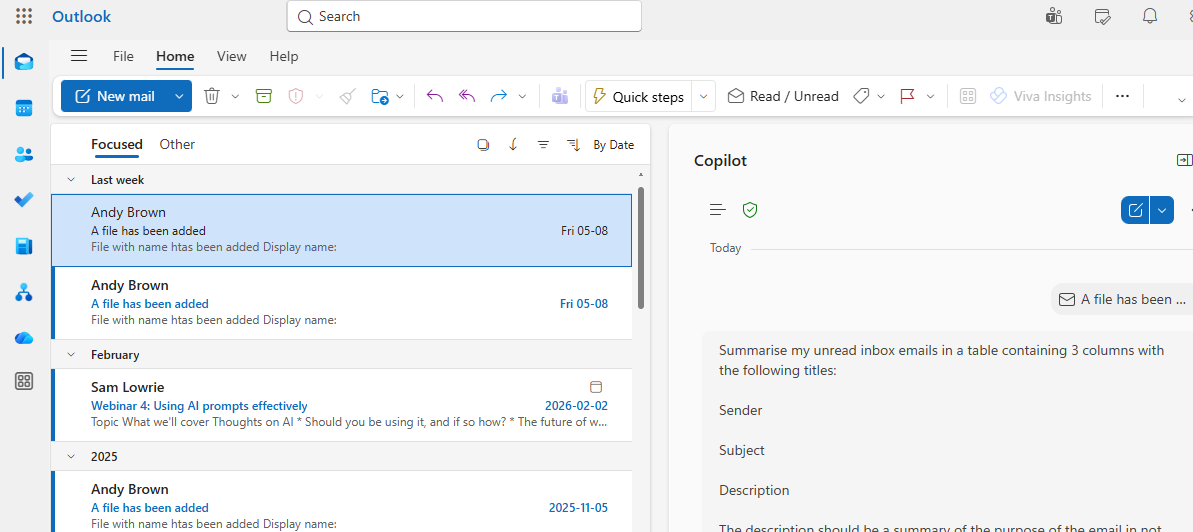
Out of all the 365 apps, Outlook is the one which lends itself most obviously to Copilot help:

My list of emails on the left, and the Copilot screen on the right.
Here's the prompt I've typed in:
Summarise my unread inbox emails in a table containing 3 columns with the following titles:
Sender
Subject
Description
The description should be a summary of the purpose of the email in not more than 30 words.
Finish by telling me which email you think I should answer first (ie which is the most urgent).
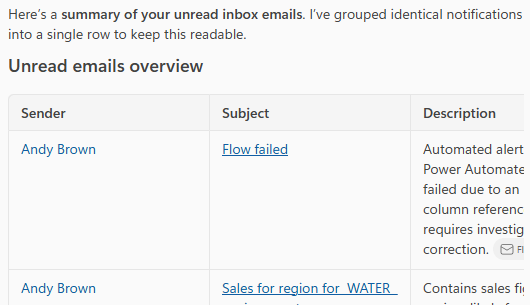
This is a really useful thing to be able to do. Here are the results:

If my emails on this test account had been more interesting, this would be useful!
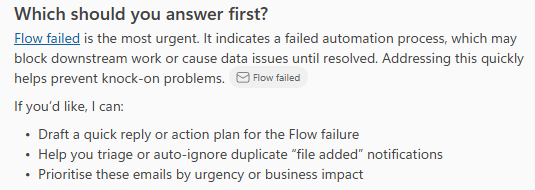
Finally Copilot will advise me on which email it thinks I should answer most urgently:

I suspect this is a test flow created as part of a Power Automate course, but Copilot isn't to know this.
My OneDrive root folder contains a file called Movies.xlsx which is a workbook containing 3,700 films, some of which have humorous reviews assigned to them:

The start of the (long) list of films.
What I'm going to ask Copilot to do is to open the workbook from OneDrive, analyse the reviews, find the 5 funniest and list these in a separate worksheet in the same workbook:
My OneDrive "My files" folder contains an Excel workbook listing out films. Each film has a review against it.
Create a new worksheet in this workbook called "Funniest", and in it list out the 5 films with the funniest reviews, using your subjective opinion to determine what "funniest" means.
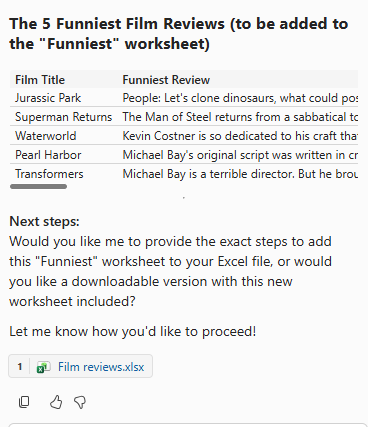
Copilot shows me its results, and asks if I want to add the new worksheet to the workbook:

I thought I'd already asked Copilot to do this, but hey ho.
I tried asking Copilot to add the worksheet several times, but in each case ended up with this message:

I suspect that Copilot is blocking access to the file it opened, but that's only a guess.
I'm going to assume that this is user error on my part!
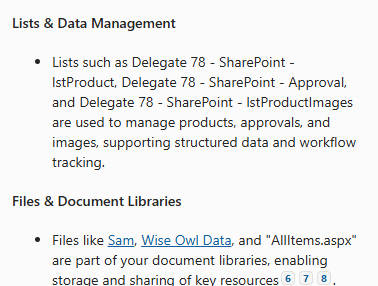
We don't have any meaningful data in our SharePoint sites (we use them for training purposes only), so I'll try a fairly generic prompt:
Summarise the contents of my SharePoint sites.
I happened to be within OneDrive when I typed this in. Here is a part of the results:

Like I said, we don't use SharePoint in anger!
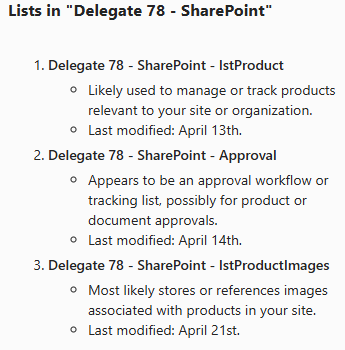
I thought I'd zoom in on one of the SharePoint sites:
For the SharePoint site called:
Delegate 78 - SharePoint
Please summarise any lists that it contains.
I got this:

This is fun! I presume I could now drill down further ...
What is strange is that while you can interrogate SharePoint sites in this way, within SharePoint itself I can't see the Copilot icon. This could be because our tenant isn't configured to allow this, but research suggests that it's more likely that this feature hasn't yet been rolled out yet to production sites.
I'll finish with one of the most useful things that you can do in Copilot: automate things you do in Teams. Let's start with adding an appontment to discuss cat videos with my good friend Delegate71:
Please add an appointment for me in my Teams calendar for 3pm tomorrow to discuss the sharing of cat videos in work time with Delegate71.
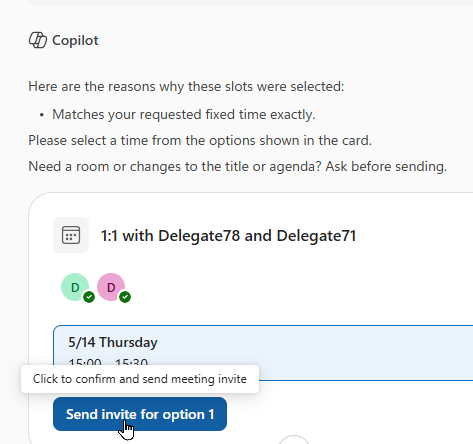
Copilot offers a reassuring level of detail and confirmation:

I clicked on the button shown to confirm the meeting and send an invite.
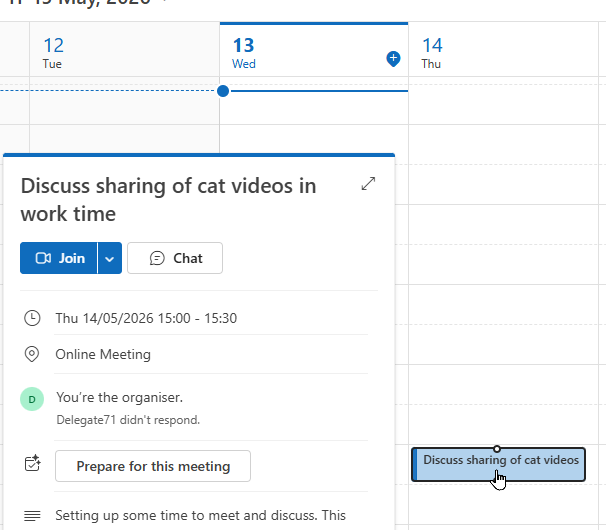
My meeting is all set:

Looking forward to it!
Let's do something more ambitious, and summarise a chat:
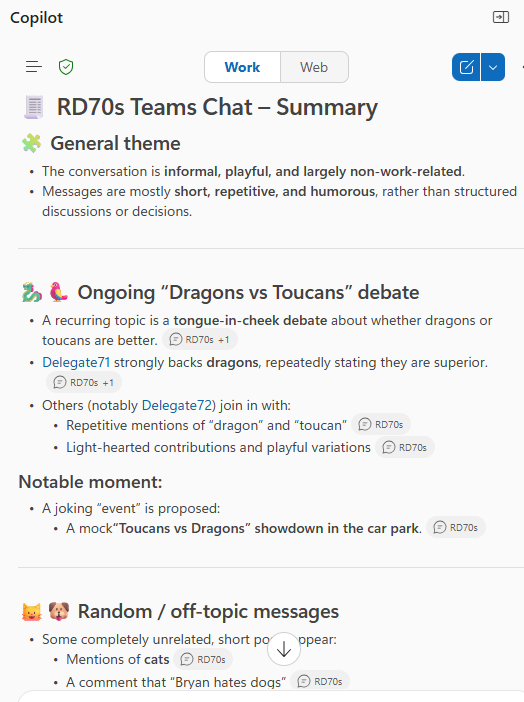
Please summarise the content of the RD70s chat in Teams
This chat mostly consisted of some delegates on a course swapping names of animals! Here's what Copilot makes of this:

This is a good summary of what the chat was about!
One of the most useful applications of Copilot 365 Business is to summarise the contents and mood of Teams meetings.
Some other pages relevant to this blog include:
You can also book hourly online consultancy for your time zone with one of our 7 expert trainers!
Kingsmoor House
Railway Street
GLOSSOP
SK13 2AA
Landmark Offices
99 Bishopsgate
LONDON
EC2M 3XD
Holiday Inn
25 Aytoun Street
MANCHESTER
M1 3AE
© Wise Owl Business Solutions Ltd 2026. All Rights Reserved.